
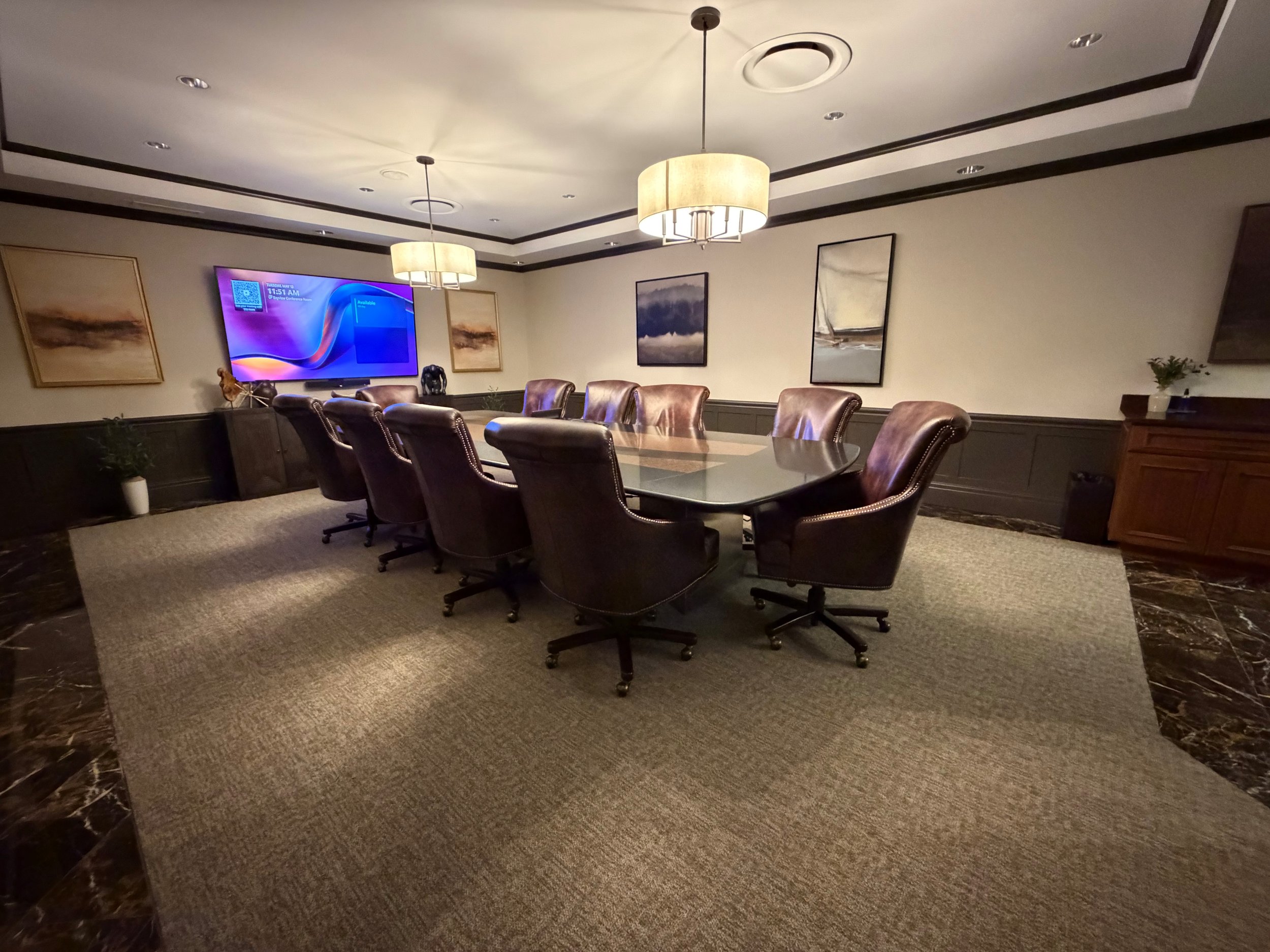
Conference Room Instructions
How to Connect to the Conference Room Yealink A40
The TV automatically turns on via a motion detector.
Connect to “Bayview Building Wifi”
Joining a Scheduled Meeting with Yealink
On the Yealink touch panel, select “Join Meeting with ID”.
Select a meeting provider
Type in the meeting ID and meeting password.
Press “Join Meeting”.
From here the owner of the meeting will let you into the meeting.
Once connected, confirm that the camera and microphone are working. (both soundbar and “puck” should be green)
Adjust volume or mute/unmute using the small remote as needed. (to mute press the “microphone” icon on the puck)
*Please place the audio puck back on its charging dock before you leave.
Starting a Meeting with Yealink
On the Yealink table press “Meet Now”.
Use the Meeting ID and Meeting Password shown on the main screen to join.
When logging into the meeting, choose “Room Audio” and search Bayview Conference Room.
Once connected, confirm that the camera and microphone are working. (both soundbar and “puck” should be green)
Adjust volume or mute/unmute using the small remote as needed. (to mute press the “microphone” icon on the puck)
*Please place the audio puck back on its charging dock before you leave.
Sharing Your Screen
Connect your laptop using the available HDMI cable for screen sharing.
Connect the laptop with the USB-A cable to connect to the audio.
On the meeting platform, make sure both audio and video are connected to “Yealink Smartlink 40”.
When finished, disconnect your laptop or stop sharing.
Feedback Form
If you have a moment, please complete the short feedback form below. Your input will help us improve the experience and address any issues you may encounter.